Use Layers
Layers contain all the data in a web map, so knowing how layers function is essential.
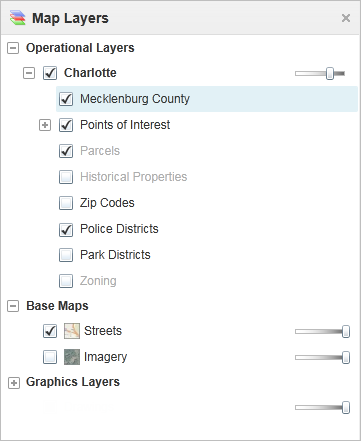
Map Layers in the information panel
To change the visibility of layers on the map:
-
To turn a layer on
 or off
  , click the checkbox in front of that layer in the Map Layers.
 Layers with text that is pale gray are not visible at the current scale.
-
To zoom directly to where a layer is visible, click that layer in the list, and then click Zoom To Visible Scale.
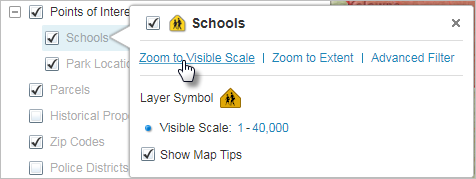
Click Zoom To Visible Scale in the Layer Actions menu
-
To zoom to an extent that is just large enough to include all the layer's features, click the layer to open the Layer Actions menu, and then click Zoom to Extent.
This is different from the Zoom to Full Extent tool in the Getting Around tab of the toolbar, which zooms out as far as possible.
-
To make a layer transparent, drag the transparency slider to the left.
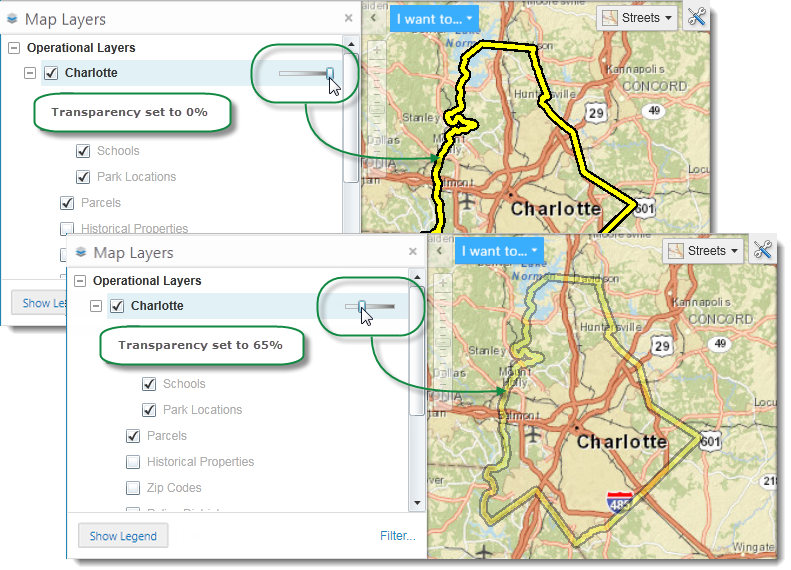
The Charlotte county border layer changed to 65% transparency
-
To quickly filter the list of layers to show only the one you want to see, start to type the name into the Filter box.
The Map Layers list updates as you type to show only the layers that match your filter word.

Use the Filter box to list only layers you want to see
Filtering the layers in the Map Layers panel does not affect the visibility of the layers on the map, but it does make it easier to find a particular layer or reduce the number of layers if you are working with a long list of layers.
-
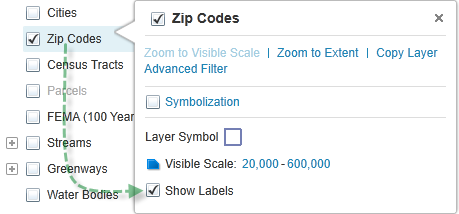
To toggle the labels on a dynamic map layer on or off, right-click the layer and select or deselect Show Labels.