About Search
The Search box allows you to search for features on the map. For example, a particular address, park, school, building, etc. Of course, the information that you can search for on a particular map depends on the type of map.

When you type a word into the Search box and click the Search icon  , the results start to display in The Results List immediately, even though the search is continuing in the background. More items display in the Results List as they are found. When all the items are displayed, each type of feature is listed by ID and name with an identifying icon to make it easy to identify feature types.
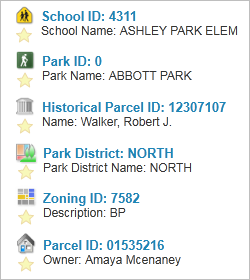
A sample of features from the Results List showing different icons
When you are searching a map with more than one layer, the results of the search are grouped by layer in The Results List, for example, Schools information will be following by Park information if they are on different layers.
Not all layers are always included in a search:
- If a layer is off (not visible), that layer's information is not included in the search.
- If the layer is not in visible in the current scale (text is gray), that layer's information is not included in the search.
Run a Standard Search
To run a search:
- In the Search box, type the name of the feature you want to find.
-
Click the search icon
to run the search.The results of the search display in the Results List. If there are different layers included in the search, the results are listed by layer.
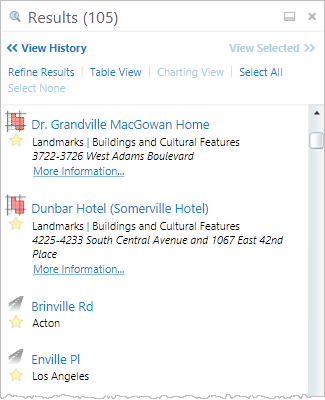
Results of a search listed by layer
See also...