Work with Coordinates
On the Analysis tab of the Toolbar, the Coordinate Tools section contains several tools that make it easy work with coordinates from different coordinate systems. You can select the coordinate system you want to use from the drop-down list, and enter coordinates manually to find them on the map. You can simultaneously add coordinates to the map, or pan to that location on the map. You can plot a series of coordinates on the map and they appear as callouts, which can then be saved or printed. If you then change the coordinate system, all the callouts on the map change to display the coordinates in the notation of the new coordinate system.
To select a coordinate system:
-
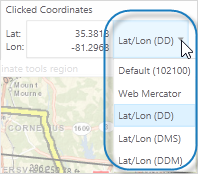
On the toolbar, click the Lat/Lon drop-down list.
-
Select one of the coordinate systems listed.
The coordinate systems displayed depend on which coordinate systems are set up for your particular application.
To find the coordinates of any point on the map:
-
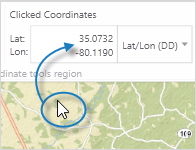
Find the Clicked Coordinates box on the toolbar and then click anywhere on the map.
The coordinates in the Clicked Coordinates box update to indicate the coordinates at that spot on the map.
To plot coordinates on the map:
-
On the Toolbar, click the Plot coordinates tool.

-
Click the map to insert a callout of the coordinates at that point.
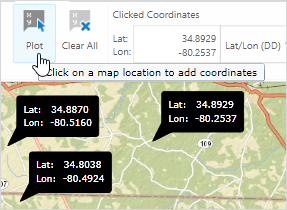
Coordinates plotted on the map
- To delete a callout, click on it.
To change the coordinate system of plotted coordinates:
-
On the toolbar, click the Clicked Coordinates drop-down arrow.
-
Select a new coordinate system from the list.
The callouts plotted on the map change to the notation of the new system.

To enter coordinates manually:
-
On the toolbar, click New.

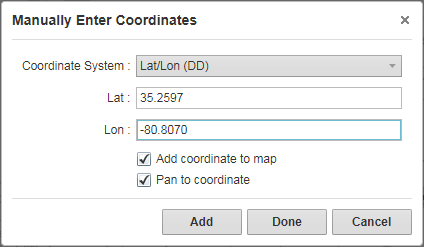
The Manually Enter Coordinates dialog box opens.
- Do any of the following:
- Coordinate System: Select a different coordinate system.
- Lat: Type in the Latitude.
- Lon: Type in the Longitude.
- Add coordinate to map: Click the map to add a callout showing the coordinate at that point on the map.
- Pan to coordinate: Pan the map to the coordinates you entered.
-
To add the coordinates to the map and keep the dialog box open, click Add.
You can then type in and add other coordinates.
- To close the dialog box, click Done.
To change the coordinate system used by the mouse:
-
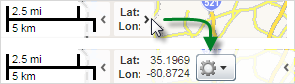
At the bottom of the map area, click the small arrow beside the coordinate control to expand it.
-
Click the arrow beside the gear icon, and then select the coordinate system you want to use from the menu.
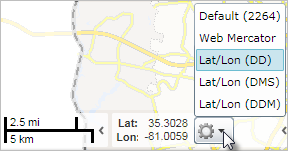
When you change coordinates in this menu, you also change the coordinates selected on the toolbar. If you have plotted coordinates on the map, these will change to the new coordinate system as well.