Find Location Tools Tab
The find location tools help move around the map and find specific locations.
| Use this tool... | To... |
|---|---|
|
Show the layer list in the Map Layers panel. |
|
Pan (move) the map in any direction. To pan the map, click on it and drag in any direction. Use the Pan tool to return to panning when you have used other tools. |
 |
Zoom in when you click on the map. |
 |
Zoom out when you click on the map. |
 |
Search for Town, Village or City by name. |
 |
Search for Township, range and section, down to the quarterquad. |
 |
The Query Builder makes it possible to specify a search by layer, field, and values. It is also possible to add multiple conditions to a search. |
 |
Click on the map near the edge of a road to return an address in the results list.. |
 |
Enter Address, city and zip code to find a location. Hint:: you need to enter road, lane, street, etc in the address or the location of the center of town will be returned. |

|
Open the Manually Enter Coordinates dialog box where you can select a coordinate system and then enter known coordinates to find a particular feature. You can also add the coordinate to the map as a callout and pan to that coordinate when you click OK. |

|
Place a callout on the map for every point you click. |

|
Clear any coordinate callouts you added to the map. |

|
Find the coordinates at any point on the map by clicking on an area and reading the result in this box. If you click the Plot Coordinates tool and then click the map, the coordinates for each place you click appear on the map. |
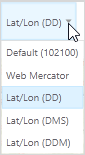
|
Select a different Coordinate System. |


See also...
Measure Distance and Area on the Map