Drawing Tools Tab
The drawing tools represent a variety of tasks including exporting, identifying and annotating the map.
| Use this tool... | To... |
|---|---|
|
Show the layer list in the Map Layers panel. |
 |
Zoom in when you click on the map. |
 |
Zoom out when you click on the map. |
 |
Extract drawings you have added to the map, add them to a shapefile and then download them. |
 |
Identify information found at any point that you click on the map. |
 |
Identify information found within a rectangle on the map. |

|
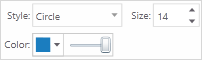
Draw a Point on the map. The shape, size, color and transparency of the point can be set using tools that appear on the toolbar when you select one of the drawing tools. These tools change based on which drawing tool you select. |

|
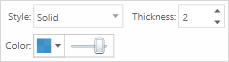
Draw freely on the map in any direction. You can change a Freehand line by changing the style, thickness, color, and transparency of the line can be set.
|

|
Draw a straight Line or click to change the line and draw in a new direction. The style, thickness, color, and transparency of the line can be set.
|

|
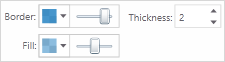
Draw a Polygon on the map, clicking to change direction. Double-click to stop drawing. You can set the thickness, color, and transparency of the border and the color and transparency of the fill.
|

|
Draw a Rectangle on the map. Click and drag across the map. You can set the thickness, color, and transparency of the border and the color and transparency of the fill.
|

|
Draw an Arrow on the map. Drag in different directions to change the shape and size of the arrow. You can set the thickness, color, and transparency of the border and the color and transparency of the fill.
|

|
Draw a circle on the map. Drag into the center or outwards to change the size of the circle. You can set the thickness, color, and transparency of the border and the color and transparency of the fill.
|

|
Draw an Ellipse on the map. Drag in different directions to change the shape and size of the ellipse. You can edit the thickness, color, and transparency of the border and the color and transparency of the fill.
|

|
Draw a Triangle on the map. Drag in different directions to change the shape, size and direction of the triangle. You can edit the thickness, color, and transparency of the border and the color and transparency of the fill.
|

|
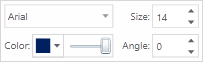
Add Text to the map. Click on the map and type the text. You can edit the font, size, color, transparency and angle or rotation of the text. You can add multiple lines of text by pressing SHIFT+ENTER. You can also select layer and field information to add to the label.
|

|
Undo the most recent edits to a drawing. |

|
Redo the most recent edits to a drawing. |

|
Edit any text or drawing added to the map. Rotate the drawing by clicking and dragging the square above the marquee in the middle of the graphic. Move text by dragging it. Rotate text by selecting it and adjusting the angle on the toolbar. To edit shapes or lines, click the drawing and drag any of the points in any direction to change the shape of your drawing.To edit text labels, click Edit Drawing and then the text. Type in new next. |

|
Clear all the drawings on the map at the same time. |

|
Erase drawings from the map one at a time by clicking on each one. |